
CSS Registration Steps is the City of Cape Coral Building Division's guide to creating an account on the EnerGov Citizen Self-Service (CSS) portal and signing in to it afterward. The portal is where the City handles permits, inspections, licenses and code cases online, so the account comes first if you need a Cape Coral permit. On this page you can fill out the form online on FillingPDF and download or print the completed PDF; the original guide and the portal itself are published by the City of Cape Coral.
Last updated
What is CSS Registration Steps – Cape Coral, FL?
CSS Registration Steps is the City of Cape Coral Building Division's PDF guide to registering for, and signing in to, an account on the EnerGov Citizen Self-Service (CSS) portal, the web system where the City handles permits, inspections, licenses, code cases and more online.
The PDF is headed "CSS Registration Instructions" and has 11 numbered steps. It covers the first-time registration (Login or Register, Create an Account, name, password, email verification code) and the later sign-in options: password, a one-time code sent by email, or a password reset.
The City's EnerGov page describes the portal as the place to submit digital applications, track application and permit status, request and monitor inspections and pay invoices. Registration creates your user account and is done only the first time you use the system.
The guide is a set of instructions, not an application. It does not apply a permit, license or fee by itself; those are handled in the portal after you sign in. The City also offers a CSS user manual and a registration guide on its EnerGov page, and a helpline for CSS questions.
Who needs to file CSS Registration Steps – Cape Coral, FL?
Anyone who wants to use the City of Cape Coral's EnerGov CSS portal to apply for or track permits, plans, inspections, business and professional licenses, code cases or public information requests needs to register first and can follow these steps.
Specific groups the guide and the City's page address:
- Business License applicants: enter the same email you gave the City when you applied for your Business License, or your records will not be linked.
- Former eTrakIt or TrakIt users: the City's page says the email on your new EnerGov account must be identical to the email on your previous account, so your permitting history links and no duplicate account is created.
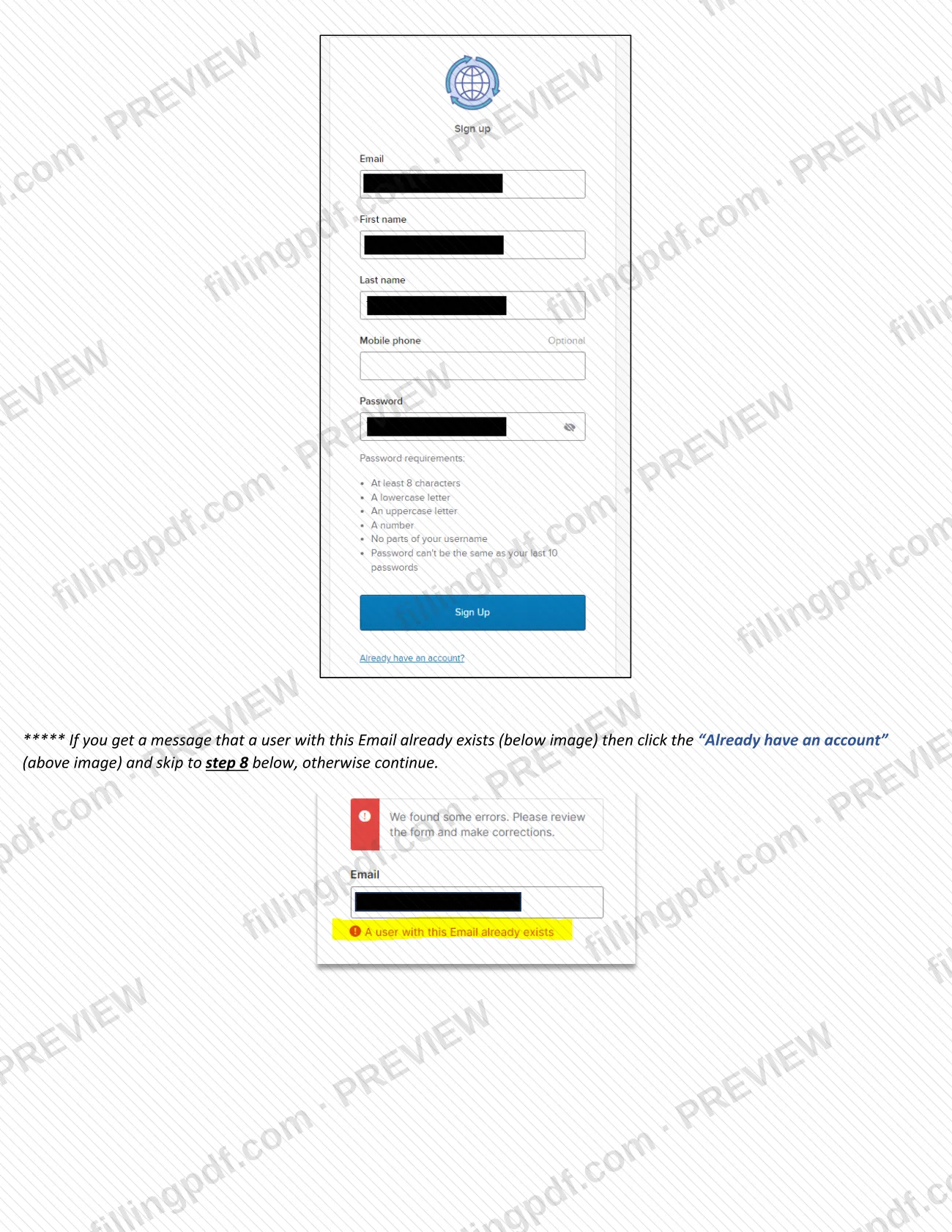
- Returning users: if you see a message that a user with your email already exists, skip to the sign-in steps (step 8).
Exclusions: the guide says its remaining instructions do not apply if you signed in with Google, Apple, Microsoft or Facebook. Searching public records does not require an account, according to the City's page.
When to file CSS Registration Steps – Cape Coral, FL
Register the first time you need to use the CSS portal, for example before applying for a permit or requesting an inspection online. The City's page says registration is done only once, the very first time you use the system; after that you sign in with the credentials you chose. The guide sets no deadline of its own. Keep the verification page open while you wait for the code, and make sure you can open the email address you registered with, because the guide says you must have access to it to complete registration and to receive sign-in codes later.
How to fill out CSS Registration Steps – Cape Coral, FL
Open Google Chrome and start
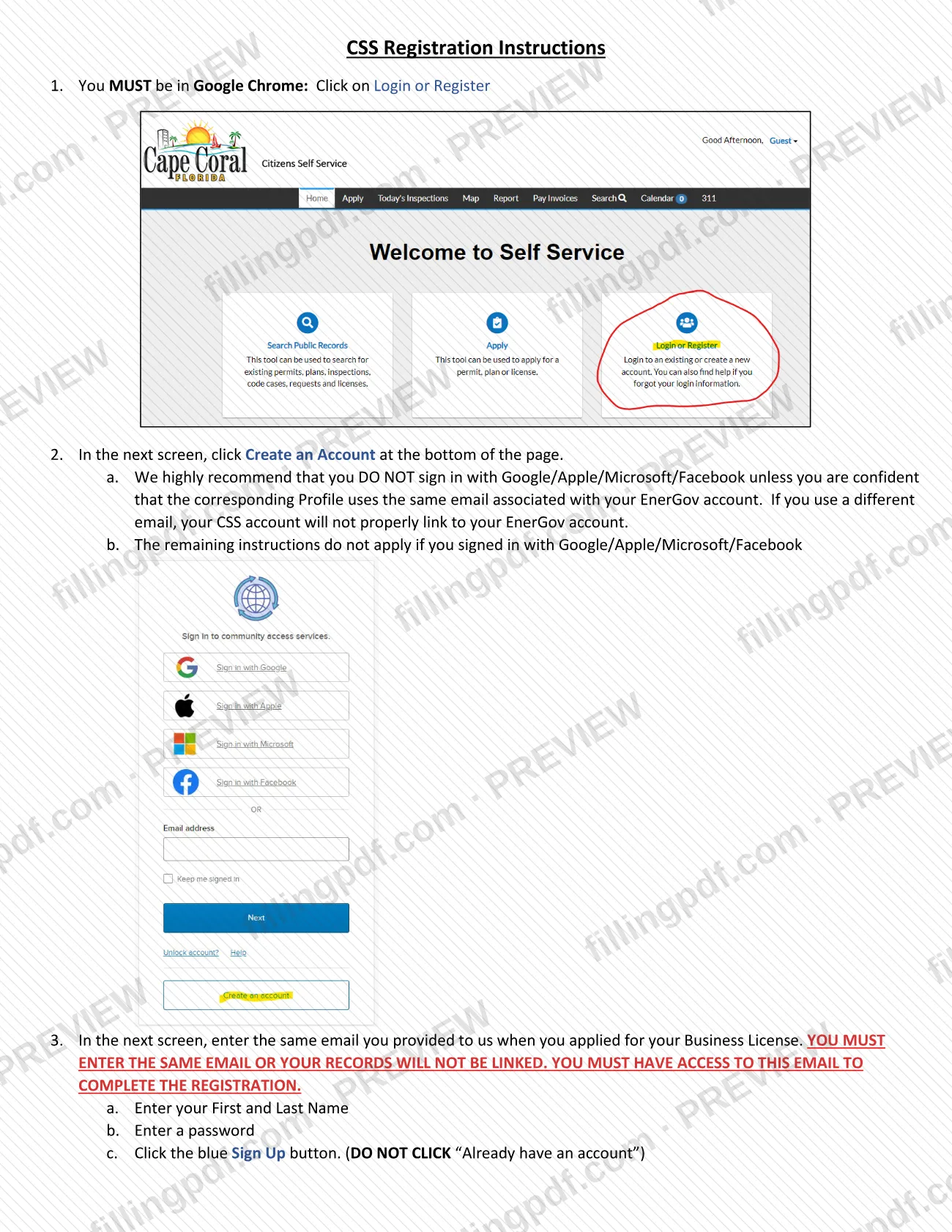
In Google Chrome, go to the EnerGov CSS login and click Login or Register. The guide says you MUST use Chrome.
Choose Create an Account
On the next screen, click Create an Account at the bottom of the page. Avoid signing in with Google, Apple, Microsoft or Facebook unless that profile uses the same email as your EnerGov account.
Enter your email and name
Type the same email you gave the City when you applied for your Business License, then your First and Last Name.
Set a password and sign up
Enter a password and click the blue Sign Up button. Do not click "Already have an account"; if a message says a user with this email already exists, click it and skip to the sign-in step.
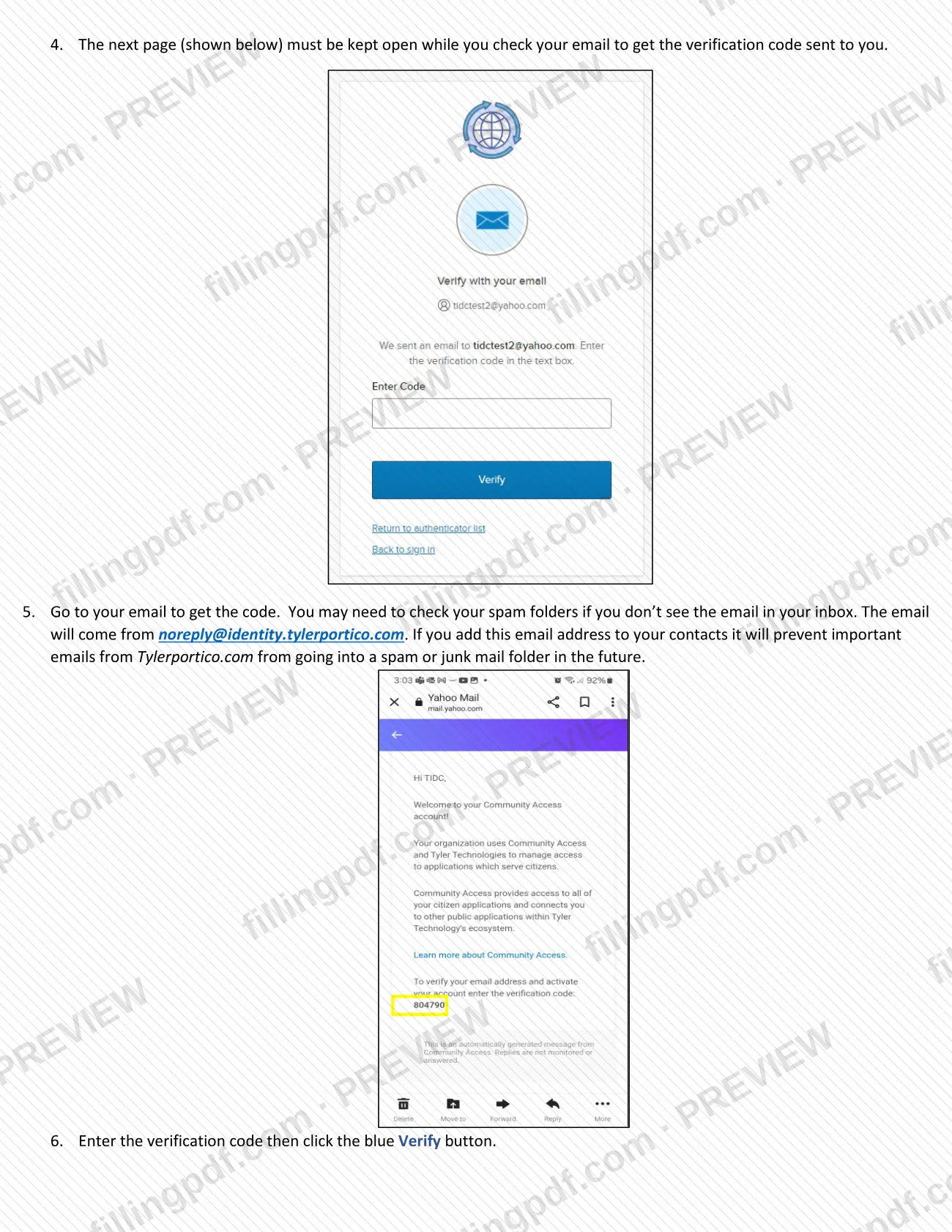
Keep the verification page open
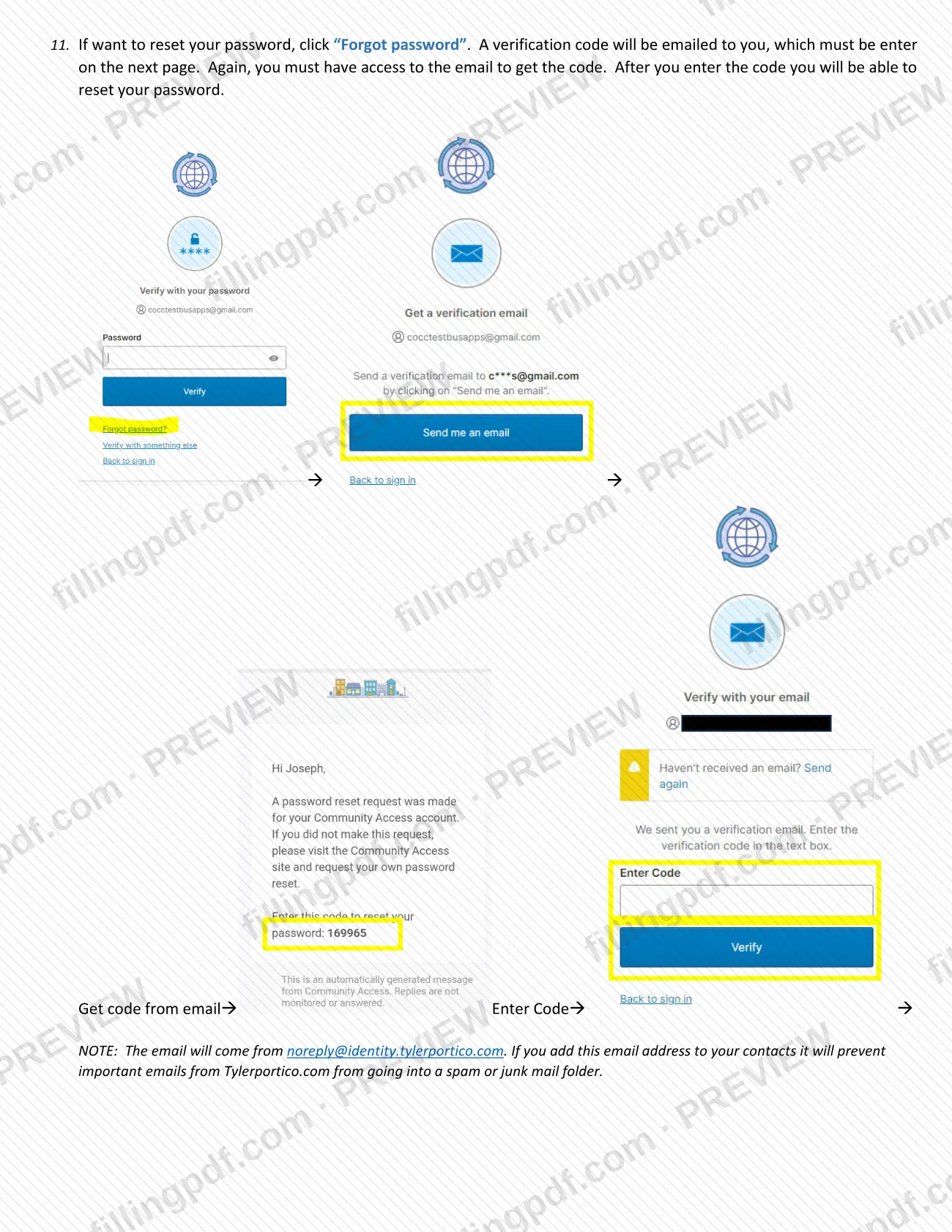
Leave the next page open while you check your email. The code comes from [email protected], so check spam folders and consider adding the address to your contacts.
Enter the verification code
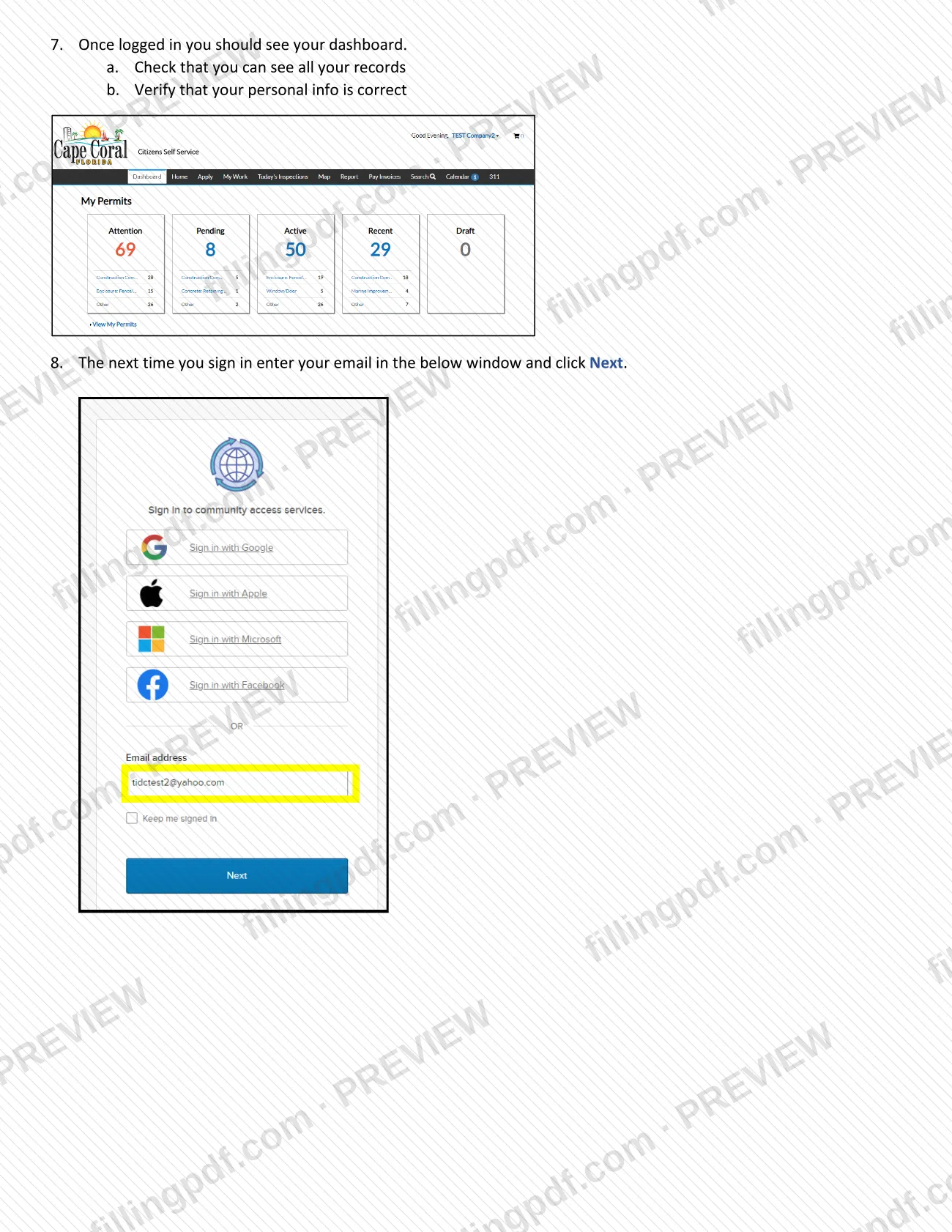
Type the code and click the blue Verify button. When you are logged in, you should see your dashboard.
Check your dashboard
Confirm that you can see all your records and that your personal information is correct.
Sign in on later visits
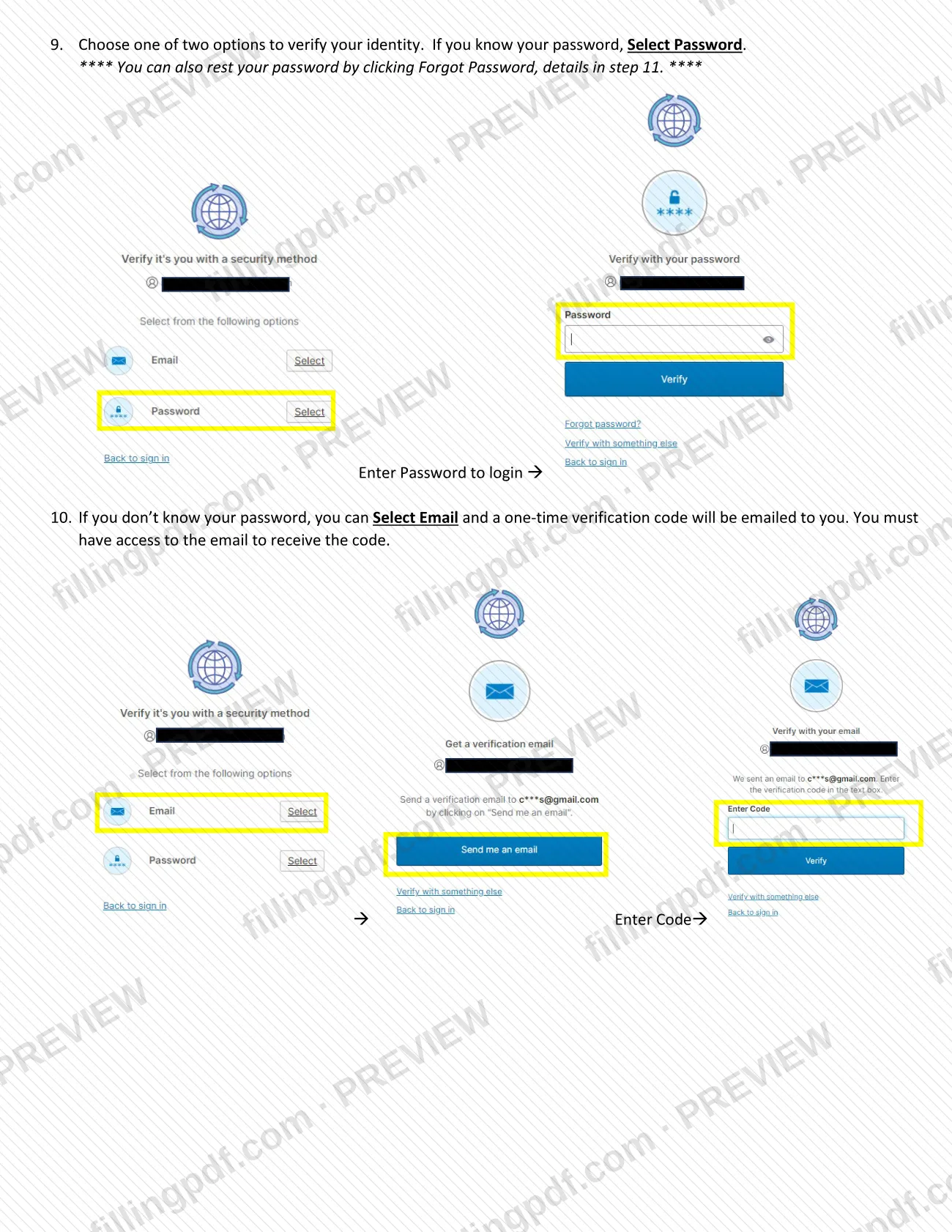
Enter your email in the window and click Next, then choose Password, or choose Email to receive a one-time verification code by email.
Reset a forgotten password
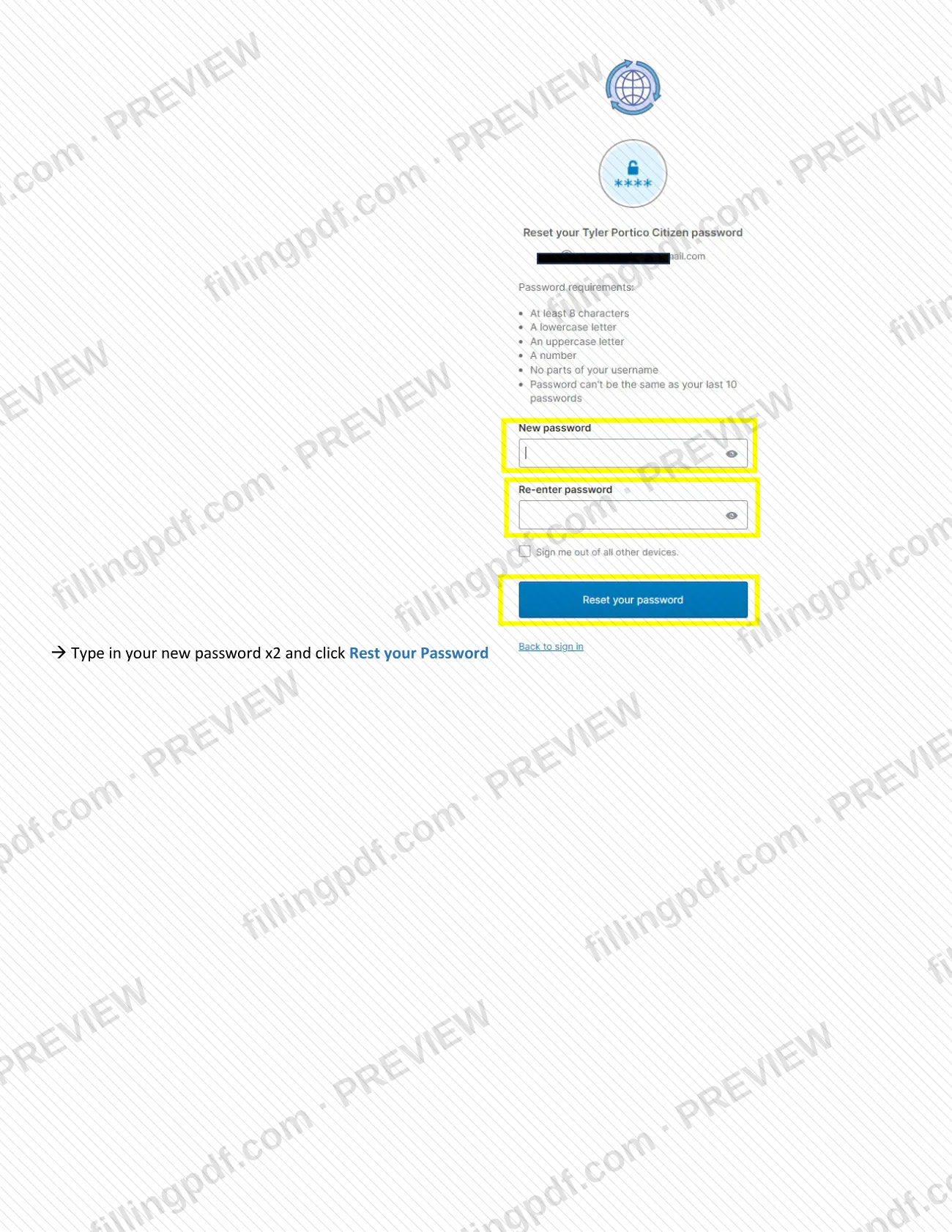
Click Forgot password, enter the code emailed to you, then type the new password twice and click the reset button.
Review and download the PDF
Check the information you entered, then download or print the completed PDF from FillingPDF and keep it with your registration details.
How to submit CSS Registration Steps – Cape Coral, FL
Registration is completed online in the EnerGov CSS portal; there is nothing to mail or deliver.
- Online: open Google Chrome, which the guide says you MUST use, go to the CSS login at https://energovweb.capecoral.gov/EnerGovProd/selfservice#/home and click Login or Register, then Create an Account. Enter the same email you gave the City, your first and last name and a password, and click Sign Up. Then enter the verification code emailed from [email protected] and click Verify.
- Help: for CSS inquiries, call the EnerGov helpline at 239-242-3838, 7:30 a.m. to 4:00 p.m. Monday through Friday. The Customer Service-Permitting Division is at 239-574-0546.
If the code does not arrive, check spam or junk folders. FillingPDF lets you fill out and download the PDF; registration itself follows the City's channels above.
Common mistakes to avoid
- Using a browser other than Google Chrome; the guide says you MUST be in Google Chrome when you click Login or Register.
- Entering a different email from the one you gave the City for your Business License; the guide says your records will not be linked.
- Signing in with Google, Apple, Microsoft or Facebook when that profile uses a different email, so the CSS account does not link to your EnerGov account.
- Clicking "Already have an account" instead of the blue Sign Up button when creating a new account in step 3.
- Closing the verification page before you get the emailed code; the guide says it must stay open while you check your email.
- Not looking in spam or junk folders for the code from [email protected].
- Registering with an email address you cannot open, since the code is sent there at registration and at every email sign-in or password reset.
Frequently asked questions
What is the CSS Registration Steps document?
It is the City of Cape Coral Building Division's PDF guide to creating an account on the EnerGov Citizen Self-Service (CSS) portal and signing in later. It is an instruction sheet with 11 numbered steps, not a permit application.
Do I need a CSS account to apply for a Cape Coral permit?
Yes, to apply online. The City's page says building permits are submitted through the CSS portal and that your first step is registering, which creates your user account. Registration is done only the first time you use the system.
Which email should I use to register for CSS?
Use the same email you gave the City when you applied for your Business License. The guide says to enter the same email or your records will not be linked. Former eTrakIt or TrakIt users must likewise use the email on that old account.
What if I never receive the verification code?
Check your spam or junk folders: the code comes from [email protected]. Adding that address to your contacts keeps future messages out of junk. You must have access to the registered email to finish registration.
How do I sign in after I register?
Enter your email and click Next, then choose Password, or choose Email to get a one-time code. If you forgot your password, click Forgot password, enter the emailed code and set a new password twice.
What if a message says a user with my email already exists?
Click "Already have an account" and skip to the sign-in steps (step 8): choose Password or Email. You already have a CSS account, so you do not create another one.
Who can I call for help with CSS registration?
Call the EnerGov helpline at 239-242-3838, 7:30 a.m. to 4:00 p.m. Monday through Friday. The City's page also lists the Customer Service-Permitting Division at 239-574-0546.
Can I fill out CSS Registration Steps online on FillingPDF?
You can fill out the PDF online on FillingPDF and download or print it. FillingPDF does not create your CSS account, is not affiliated with the City of Cape Coral, and does not submit anything; you register in the City's EnerGov portal.
Ready to fill out CSS Registration Steps – Cape Coral, FL?
Fill out CSS Registration Steps – Cape Coral, FL now