
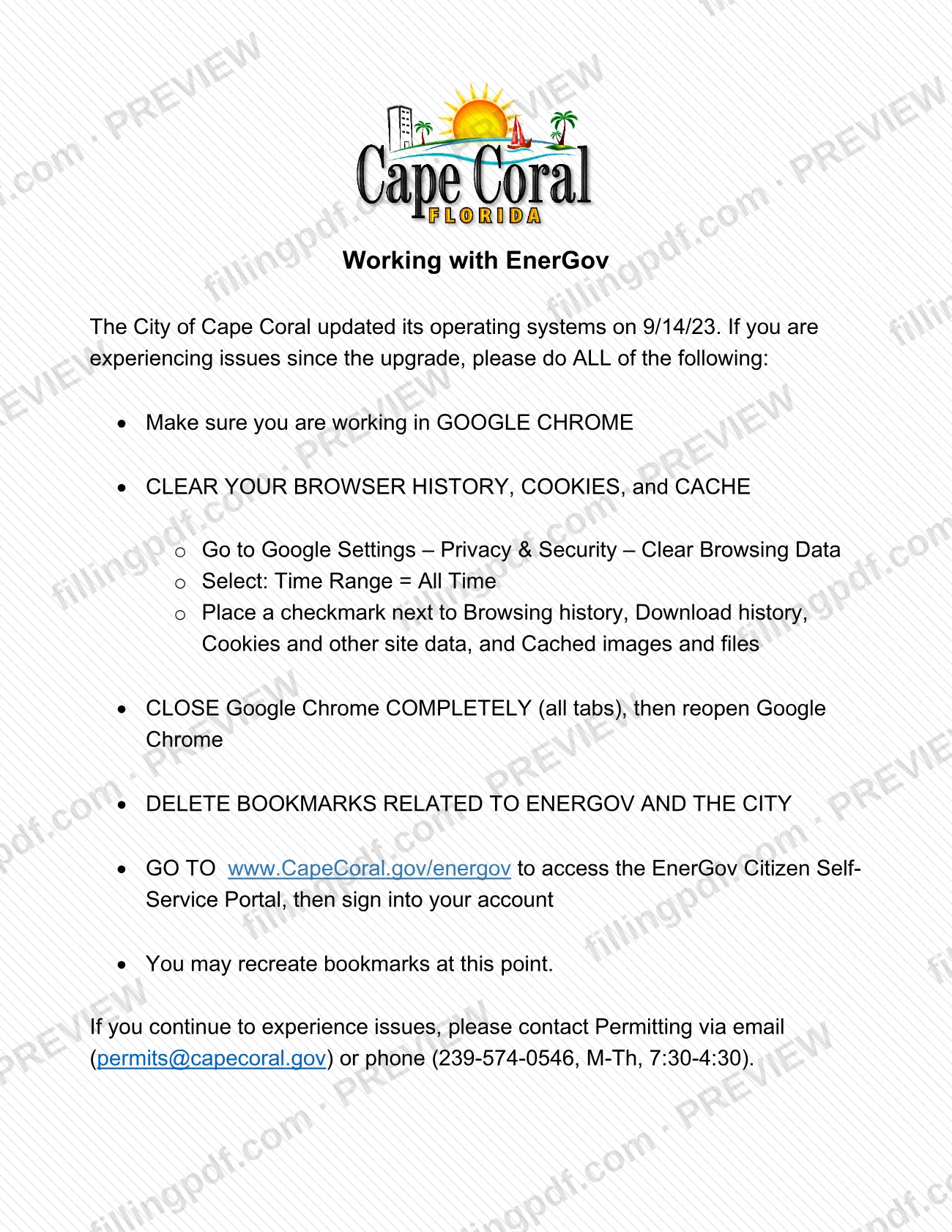
Working with EnerGov is the City of Cape Coral's troubleshooting sheet for the EnerGov Citizen Self-Service Portal, the system used to submit permit applications and to check permit or inspection status. It is one of the Cape Coral permit resources published by the Permitting Services Division, and it lists the browser steps to take if the portal has given you trouble since the city updated its operating systems on 9/14/23. This is an instruction sheet, not an application: on FillingPDF you can open the PDF and download or print it, while the portal and the permit process stay with the city.
Last updated
What is Working with EnerGov – Cape Coral, FL?
Working with EnerGov is the troubleshooting sheet that the City of Cape Coral publishes through its Permitting Services Division for people who cannot use the EnerGov Citizen Self-Service Portal properly after the city updated its operating systems on 9/14/23.
The sheet is a checklist, and the city says to do all of it. You work in Google Chrome, clear your browsing history, cookies and cache, close Chrome completely, delete bookmarks tied to EnerGov and the city, and reach the portal through www.CapeCoral.gov/energov. It ends with the Permitting email address and phone number for problems that continue.
The Permitting Services Division describes itself as the office that administers, issues, coordinates and reports on all building permit activity for the City of Cape Coral. Its web page links to this sheet under the label "Click here for troubleshooting help", beside the tool for checking permit or inspection status. The division's page says plan reviews and inspections are carried out by the Building Division.
The sheet is not a permit application and has no fields to complete. Permit applications are made in the EnerGov portal itself.
Who needs to file Working with EnerGov – Cape Coral, FL?
Anyone who uses the EnerGov Citizen Self-Service Portal and has had problems since the city's 9/14/23 system update can follow this sheet.
The Permitting Services Division's page explains why the portal matters to different users:
- Licensed contractors are required to apply online, and the division tells them to register on the EnerGov CSS Portal to avoid counter delays.
- Owner-builders are expected to submit permit applications through the online portal as the city's standard process beginning July 1, 2026.
- Anyone tracking a permit or inspection uses the portal to check status at any time.
Customers who need help with the portal can schedule a 30-minute appointment through the Virtual Line or use a public computer station at City Hall. Staff can guide you through the online process, but applications must still be submitted electronically through EnerGov.
Do not use this sheet as an application. New permit applications are not accepted at the permit counter.
When to file Working with EnerGov – Cape Coral, FL
Use this sheet when the EnerGov portal misbehaves for you, particularly if the trouble started after the city's operating system update on 9/14/23. It has no due date and nothing is filed with it.
If you still have problems after completing every step, the sheet says to contact Permitting by email or by phone at 239-574-0546, Monday through Thursday, 7:30 to 4:30. The Permitting Services Division's page lists the permitting counter hours as Monday through Thursday, 7:30 a.m. to 4:00 p.m., and Friday, 9:30 a.m. to 4:00 p.m.
How to fill out Working with EnerGov – Cape Coral, FL
Work in Google Chrome
Make sure you are using Google Chrome before you do anything else on the sheet.
Open Chrome's clear-data settings
Go to Google Settings, then Privacy & Security, then Clear Browsing Data.
Set the time range to All Time
Select Time Range = All Time so that every stored item is covered.
Check the four data boxes
Place a checkmark next to Browsing history, Download history, Cookies and other site data, and Cached images and files, then clear the data.
Close and reopen Chrome
Close Google Chrome completely, including all tabs, then reopen it.
Delete EnerGov and city bookmarks
Remove every bookmark related to EnerGov and the City of Cape Coral.
Go to the portal and sign in
Enter www.CapeCoral.gov/energov to reach the EnerGov Citizen Self-Service Portal and sign in to your account. You may recreate bookmarks at this point.
Contact Permitting if problems continue
If issues remain, email [email protected] or call 239-574-0546 (M-Th, 7:30-4:30). You can download or print the PDF from FillingPDF to keep the checklist at hand.
How to submit Working with EnerGov – Cape Coral, FL
Nothing on this sheet is submitted. It points you to three ways to get help: the EnerGov portal itself, the Permitting team by email or phone, and in-person or virtual assistance.
- EnerGov portal: after clearing your browser, go to www.CapeCoral.gov/energov and sign in to your account. Permit applications must be submitted through this portal.
- Email and phone: write to [email protected] or call the Permitting Help Desk at 239-574-0546 (the sheet gives Monday through Thursday, 7:30 to 4:30). Contractor Registration is 239-574-0870 and inspection questions are 239-573-3173.
- Assistance with the portal: schedule a 30-minute appointment through the Virtual Line, or visit City Hall to use a public computer station.
New permit applications are not accepted at the permit counter. FillingPDF lets you open and download the PDF; any permit application follows the City of Cape Coral's channels above.
Common mistakes to avoid
- Using a browser other than Google Chrome; the sheet says to make sure you are working in Chrome.
- Doing only some of the steps. The city says to do ALL of them, including clearing data, closing Chrome and deleting bookmarks.
- Clearing browsing data with a time range shorter than All Time, or skipping browsing history, download history, cookies and other site data, or cached images and files.
- Leaving Chrome partly open; the sheet says to close it completely, all tabs, and then reopen it.
- Keeping old EnerGov or city bookmarks instead of deleting them and recreating them after you sign in.
- Reaching the portal through an old link rather than www.CapeCoral.gov/energov.
- Trying to submit a new permit application at the permit counter, which does not accept new applications.
- Calling the Permitting phone line on a Friday; the sheet gives phone support Monday through Thursday, 7:30 to 4:30.
Frequently asked questions
What is Working with EnerGov?
Working with EnerGov is a City of Cape Coral troubleshooting sheet for the EnerGov Citizen Self-Service Portal. It gives browser steps to follow if you have had problems since the city updated its operating systems on 9/14/23, and it names the Permitting contacts for issues that continue.
How do I fix EnerGov problems on the Cape Coral permit portal?
Do all of the sheet's steps: use Google Chrome, clear browsing history, cookies and cache for All Time, close Chrome completely, delete EnerGov and city bookmarks, then go to www.CapeCoral.gov/energov and sign in. If trouble continues, contact Permitting.
Can I apply for a Cape Coral building permit with this sheet?
No. This sheet only helps you reach the portal. The Permitting Services Division says all permit applications must be submitted through the EnerGov Self-Service Portal, and new permit applications are not accepted at the permit counter.
Do contractors and owner-builders have to apply online in Cape Coral?
Licensed contractors are required to apply online. Beginning July 1, 2026, owner-builders are also expected to submit permit applications through the online portal as the city's standard process, according to the Permitting Services Division.
How do I check my Cape Coral permit or inspection status?
Track it anytime through the EnerGov Customer Self-Service Portal, which you reach at www.CapeCoral.gov/energov. The Permitting Services Division's page links to the portal and to this troubleshooting sheet.
Who do I contact if EnerGov still does not work?
Email [email protected] or call the Permitting Help Desk at 239-574-0546; the sheet gives phone hours of Monday through Thursday, 7:30 to 4:30. Contractor Registration is 239-574-0870 and inspection questions are 239-573-3173.
Is there in-person help with the online permit portal?
Yes. You can schedule a 30-minute appointment through the Virtual Line or visit City Hall to use a public computer station. Staff can guide you, but applications must still be submitted electronically through EnerGov.
Can I fill out Working with EnerGov on FillingPDF?
The sheet is a set of instructions with nothing to complete. On FillingPDF you can open the PDF and download or print it. FillingPDF is independent of the City of Cape Coral and does not submit permit applications or run the EnerGov portal.
Ready to fill out Working with EnerGov – Cape Coral, FL?
Fill out Working with EnerGov – Cape Coral, FL now