
These step-by-step instructions are a guide from the Montana Department of Labor and Industry, Unemployment Insurance Division (UI), for reporting a refusal of work or a declined or missed interview. The report is no longer a paper form: it is completed on the State of Montana Self-Service Portal. The guide covers creating an account, submitting a report, submitting another one, logging out and viewing past reports. On FillingPDF you can view and download the official PDF; the report itself is filed in the portal.
Last updated
What is Step-by-Step Instructions: Reporting a Refusal of Work or a Declined or Missed Interview – Montana?
The Step-by-Step Instructions are the Montana Unemployment Insurance Division's illustrated guide, titled "Reporting a Refusal of Work or a Declined or Missed Interview," that shows how to file those reports on the State of Montana Self-Service Portal.
The Unemployment Insurance reporting forms for Refusal of Work and Declined/Missed Interview moved to the portal so that the form can be completed and submitted in one place. The guide is not the report itself. It explains how to reach and use the Unemployment Report Form that appears in the portal, where you choose what you are reporting from the Request Type drop-down menu.
The guide is organized in six parts:
- Introduction
- Create an Account
- Submit a Report
- Submit Another Report
- Log Out
- View Submitted Forms
According to the Division's employer page, an individual who is receiving Unemployment Insurance Benefits and refuses an official offer of work, or declines or misses an offered interview without good cause, may lose the ability to keep receiving benefits. The report tells UI when that happens. Once a report is submitted, the portal gives a Case Number and a Summary of the submission.
Who needs to file Step-by-Step Instructions: Reporting a Refusal of Work or a Declined or Missed Interview – Montana?
The Division's employer page is addressed to employers: when someone who is receiving Unemployment Insurance Benefits refuses an official offer of work, or declines or misses an offered interview without good cause, employers are strongly encouraged to notify UI. This guide shows them how to file that notice.
Points the Division makes about who files and how:
- A separate report is needed for each individual.
- You need an account on the State of Montana Self-Service Portal. If you do not have one, the guide shows how to create it with an email address.
- Details should be as specific as possible.
The guide itself does not restrict who may use the portal, and it does not describe filing on someone else's behalf or through a representative. It also does not cover quarterly reports, appeals or benefit claims. For those, use the other pages of the Unemployment Insurance Division site.
When to file Step-by-Step Instructions: Reporting a Refusal of Work or a Declined or Missed Interview – Montana
Report when an individual who is receiving Unemployment Insurance Benefits refuses an official offer of work, or declines or misses an offered interview without good cause. The Division's employer page says employers are strongly encouraged to notify UI when this happens, because it may affect the individual's ability to continue receiving benefits. Neither the guide nor the employer page sets a calendar deadline for the report.
Check the report before you submit it. The guide warns that a submitted report cannot be changed, so everything you want to report must be included and correct at that point.
Documents you need
- An email address and password for the State of Montana Self-Service Portal; a new account is created with the same email address.
- Supporting evidence, such as email or text correspondence, only if you have it; attach it to the report with Add Attachments before you submit.
How to fill out Step-by-Step Instructions: Reporting a Refusal of Work or a Declined or Missed Interview – Montana
Create a portal account if needed
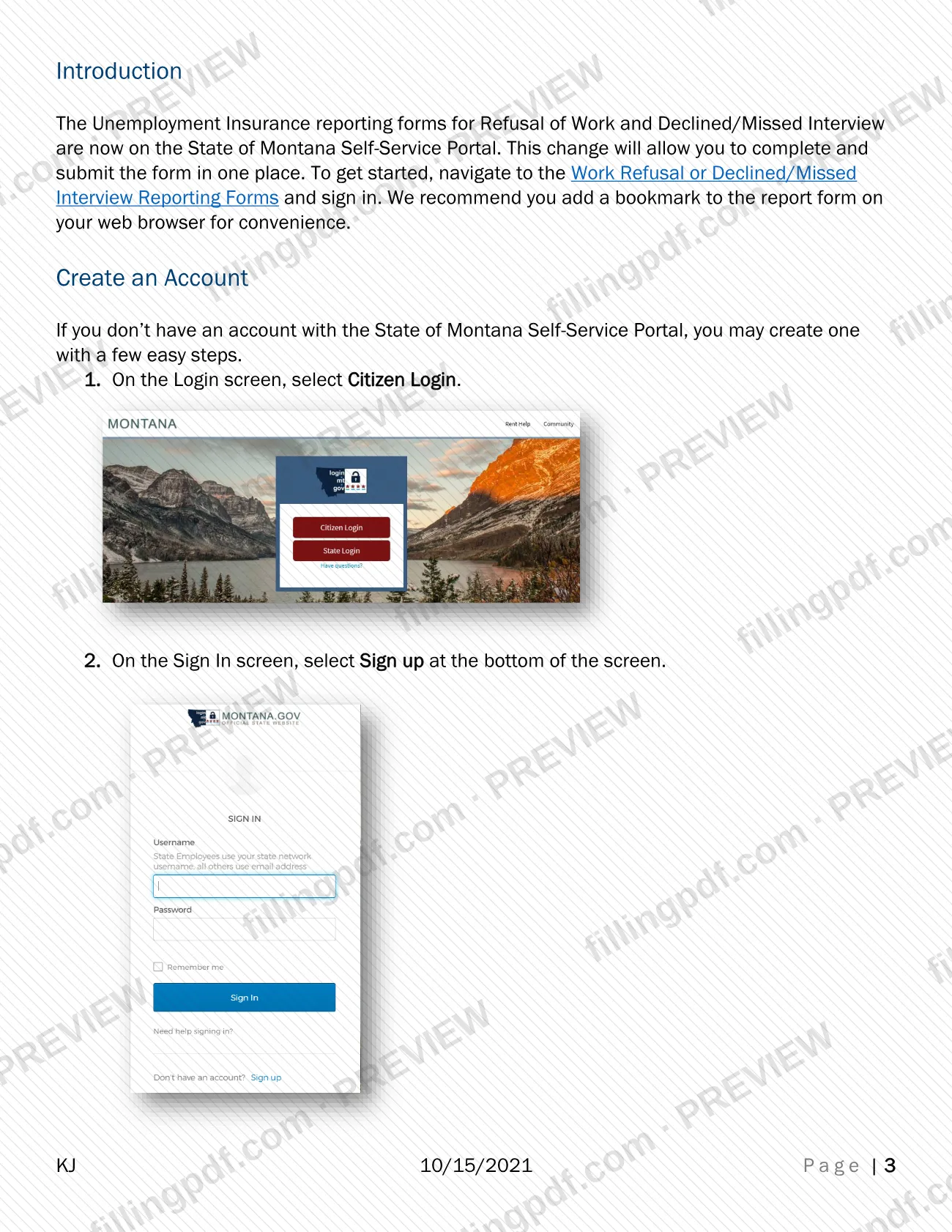
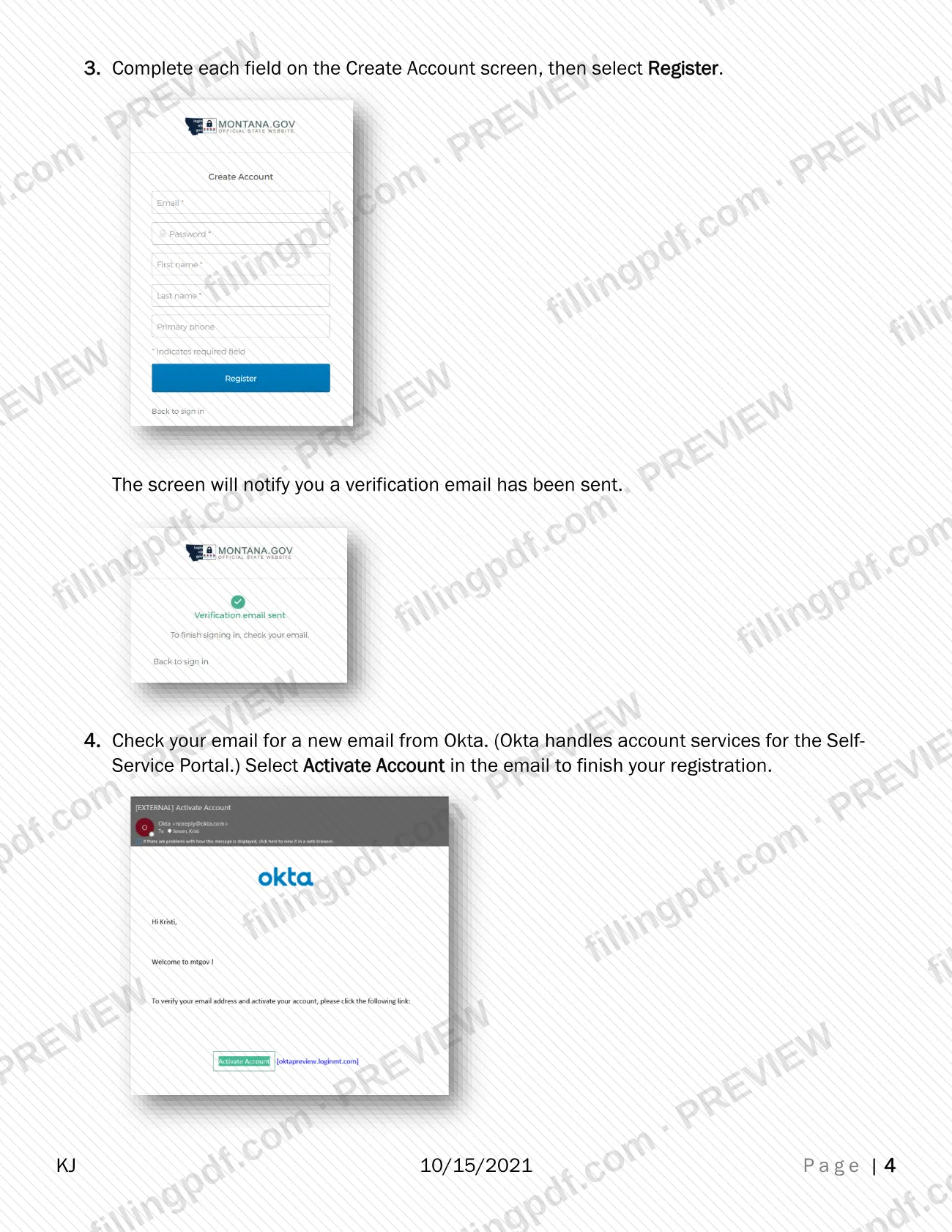
On the Login screen select Citizen Login, then select Sign up on the Sign In screen. Complete each field on the Create Account screen and select Register.
Activate your account by email
Open the new email from Okta, which handles account services for the portal, and select Activate Account to finish your registration.
Open the report page and sign in
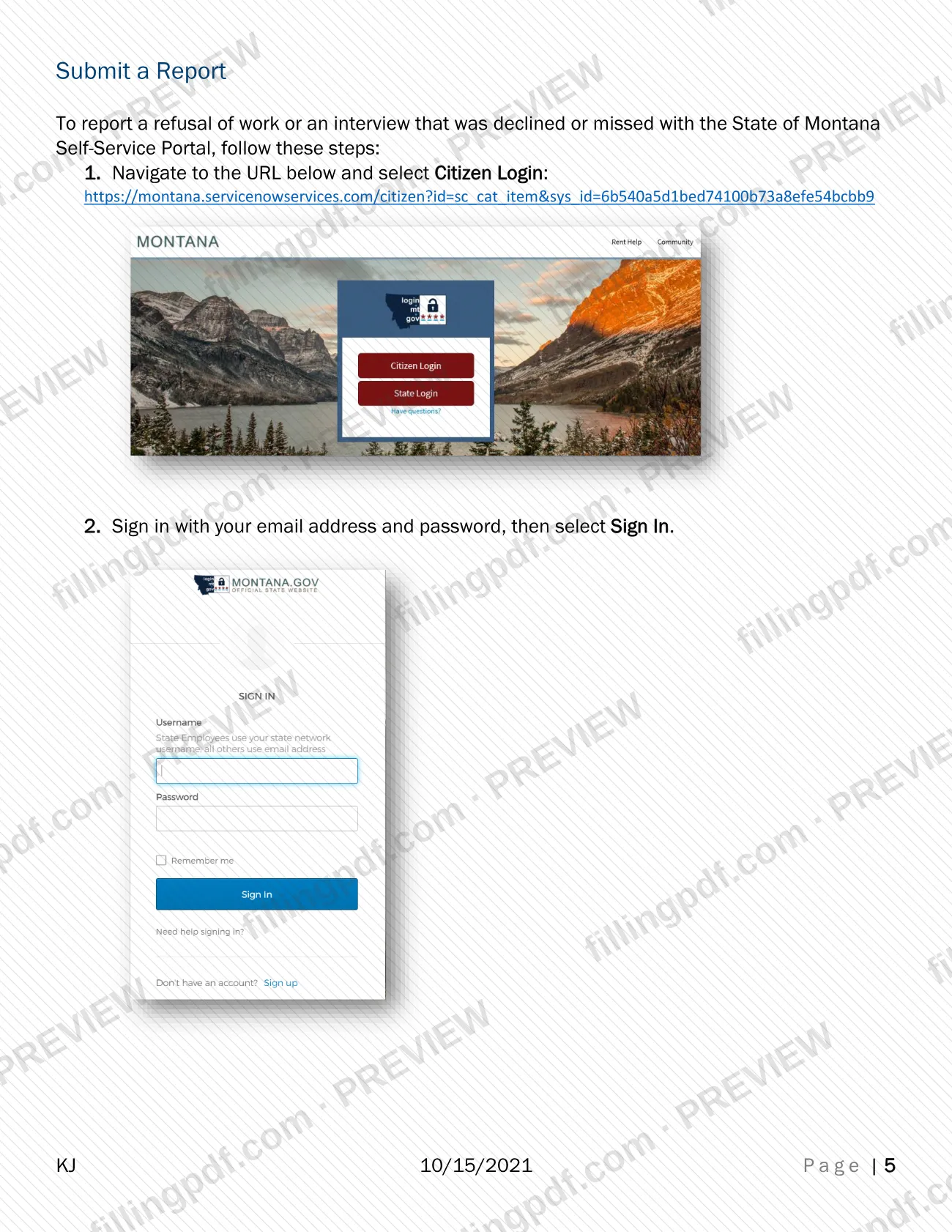
Go to the portal address given in the guide and select Citizen Login. Enter your email address and password, then select Sign In.
Choose the Request Type
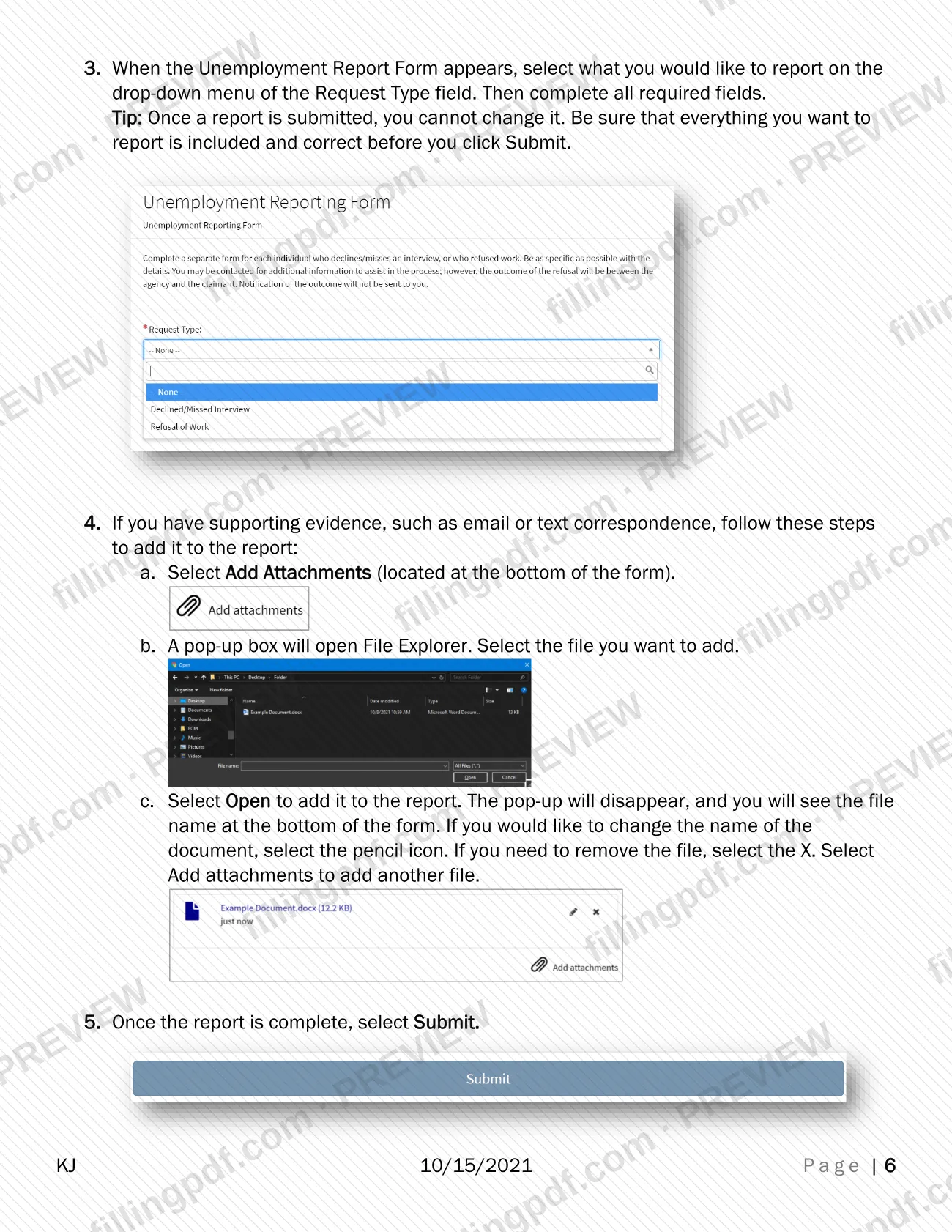
When the Unemployment Report Form appears, pick what you are reporting from the drop-down menu of the Request Type field.
Complete all required fields
Fill in every required field, giving as specific details as possible. Check that everything is correct, because a submitted report cannot be changed.
Add supporting evidence
If you have email or text correspondence, select Add Attachments at the bottom of the form, pick the file and select Open. Use the pencil icon to rename a file or the X to remove it.
Submit the report
Once the report is complete, select Submit. The portal then shows the Case Number and a Summary of your submission.
Submit another report or review cases
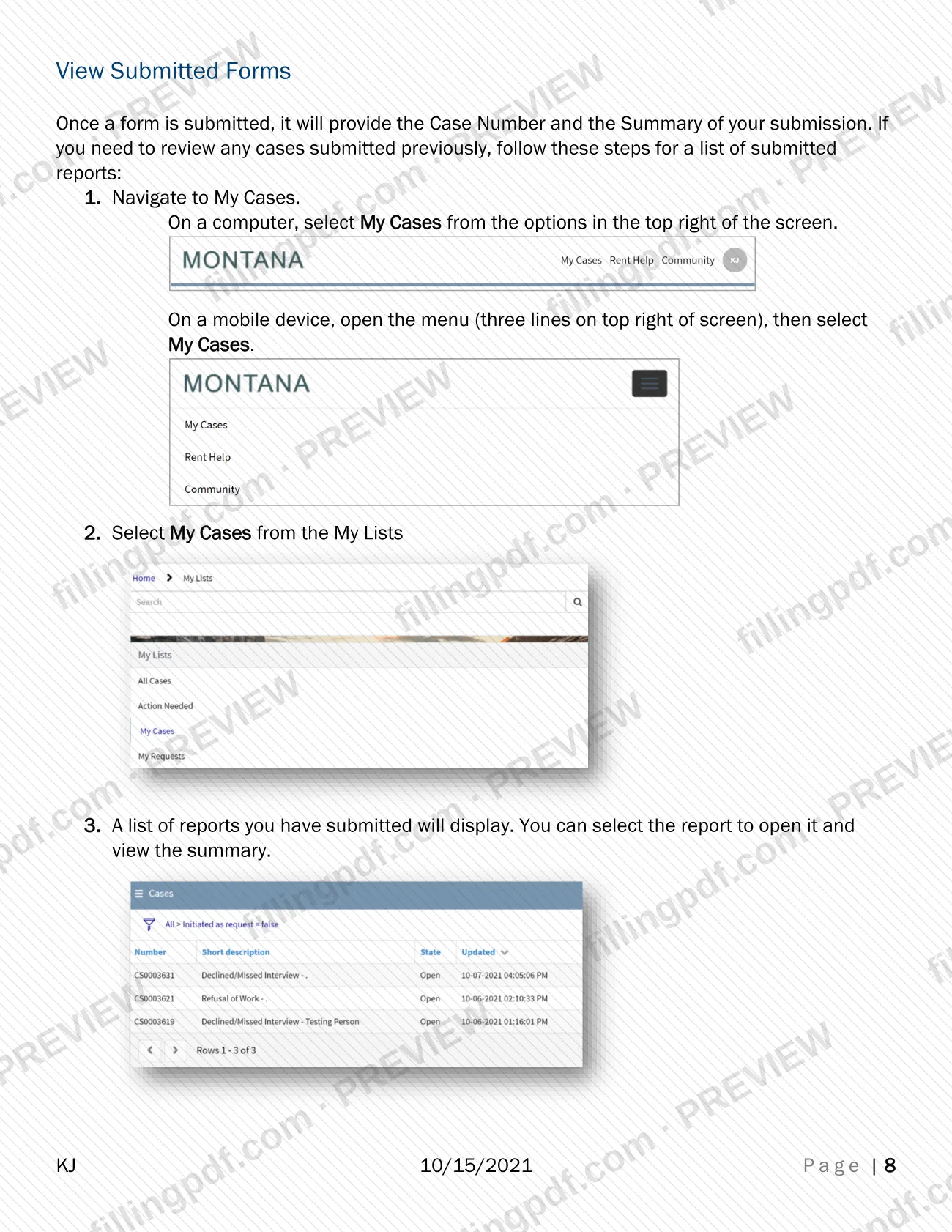
Select Submit Another Form from the pop-up to report on another individual. To review earlier reports, open My Cases, then My Cases under My Lists.
Log out of the portal
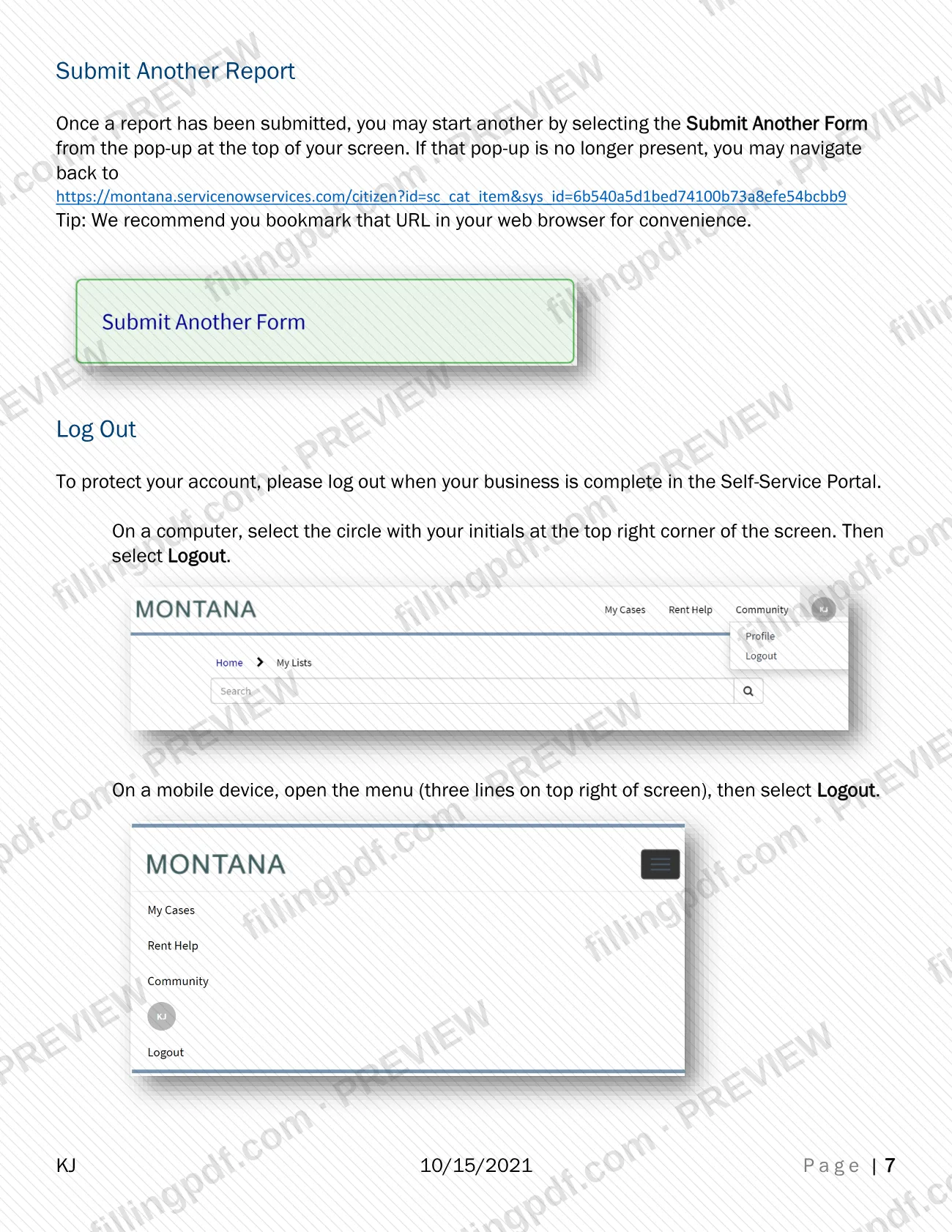
On a computer, select the circle with your initials at the top right, then Logout. On a mobile device, open the menu and select Logout.
How to submit Step-by-Step Instructions: Reporting a Refusal of Work or a Declined or Missed Interview – Montana
The report is submitted online through the State of Montana Self-Service Portal. The guide describes no mail, fax or in-person channel.
- Portal address: https://montana.servicenowservices.com/citizen?id=sc_cat_item&sys_id=6b540a5d1bed74100b73a8efe54bcbb9. Select Citizen Login, then sign in with your email address and password. The guide suggests bookmarking this address.
- New account: select Sign up on the Sign In screen, complete the Create Account fields and select Register. Then open the email from Okta and select Activate Account.
- Submit: choose the Request Type, complete all required fields, add any evidence with Add Attachments, then select Submit.
- Afterward: the portal shows a Case Number and a Summary. Review earlier reports under My Cases, and log out when you finish.
FillingPDF lets you view and download the official PDF; submission follows the portal channel above.
Common mistakes to avoid
- Submitting the report before checking it. The guide warns that a submitted report cannot be changed.
- Leaving required fields on the Unemployment Report Form incomplete after choosing the Request Type.
- Choosing the wrong item in the Request Type drop-down when reporting a refusal of work versus a declined or missed interview.
- Combining several individuals in one report, when the Division says a separate form is needed for each individual.
- Not selecting Activate Account in the Okta email after registering, which leaves the account registration unfinished.
- Giving vague details; the Division asks you to be as specific as possible.
- Leaving the portal without logging out when your business is complete, which the guide advises against to protect your account.
Frequently asked questions
What are the step-by-step instructions for reporting a refusal of work in Montana?
They are the Unemployment Insurance Division's guide to the State of Montana Self-Service Portal. You sign in with Citizen Login, choose a Request Type on the Unemployment Report Form, complete the required fields, add any evidence and select Submit.
Can I report a refusal of work on paper?
The guide describes only the online route. The reporting forms for Refusal of Work and Declined/Missed Interview are on the State of Montana Self-Service Portal, so you complete and submit them there.
Do I need an account to submit the report?
Yes, you sign in to the portal with an email address and password. If you have no account, select Sign up, complete the Create Account screen, select Register and then Activate Account in the Okta email.
Can I change a report after I submit it?
No. The guide says a submitted report cannot be changed, so confirm that everything you want to report is included and correct before you select Submit.
Can I attach emails or text messages to the report?
Yes, if you have them. Select Add Attachments at the bottom of the form, choose the file and select Open. You can rename a file with the pencil icon or remove it with the X.
How do I see reports I already submitted?
Open My Cases from the top right of the screen, or from the menu on a mobile device, then select My Cases under My Lists. Select a report to open its summary. Each submission has a Case Number.
Do I file one report for several people?
No. The Division says a separate form is needed for each individual. After submitting, you can start another report by selecting Submit Another Form from the pop-up.
Does FillingPDF file this report with Montana UI?
No. FillingPDF lets you view and download the official PDF guide, but it does not submit reports and is not connected to the Division. You file the report yourself on the State of Montana Self-Service Portal.
Ready to fill out Step-by-Step Instructions: Reporting a Refusal of Work or a Declined or Missed Interview – Montana?
Fill out Step-by-Step Instructions: Reporting a Refusal of Work or a Declined or Missed Interview – Montana now